I tend to describe Microsoft’s Build conference as a bit like Christmas for developers who use Microsoft’s tools and technologies to build software. This year was no exception – and there was plenty to be excited about.
As per usual, there is a vast amount of content published on Channel 9, most of which I have not gone through yet, but here are some of the top announcements that interested me the most:

Microsoft’s democratised AI offerings continue to grow and improve customisation
Microsoft have been promoting their Cognitive Services for a while now, and they’ve been getting more and more robust over time, now with 29 services up and running and available for developers to use.
One of the most exciting additions this year is the trainable image services. Being able to train AI to spot certain attributes on images is something that can have a huge impact on some of the technologies I build professionally.
The addition of Cognitive Services Labs allows developers to try out more experimental AI services, including Project Prague, a gesture recognition service.
It’s also worth mentioning that Satya said that, as solution architects and software developers, we should take accountability for the algorithms and experience we produce. We should be building inclusive systems which help empower people – in a way that they can trust. I agree with him.
Azure Cosmos DB is a shiny new multi-model global scale data service
As well as bringing much needed MySQL and PostgreSQL service offerings to the cloud, Microsoft have also announced their latest home grown cloud-native database service, Cosmos DB.
As a software architect, having Cosmos DB will allow me to make much better choices about the consistency of data solutions I am designing without having to worry about indexes or where the data will rest at run time.
The global distribution of Cosmos makes it a lot easier to make ensure that the data is as geographically close as possible to the end user. It’s essentially an extension of Document DB, but allows for a multi-model interface: key-value, column family, graph, and document.
As Cosmos DB is built on the Document DB technologies, there is already an emulator which can be used locally at development time. For me, this is a must when choosing cloud technologies.
For me the timing of the Cosmost DB announcement is really great, as a planet scale database is something I’ve actively been looking at for a new project I’m working on. I’m looking forward to learning more about it.
New tools for Azure developers and administrators
Azure is becoming one of the most important assets that Microsoft has. It’s the centre of many of their initiatives including AI, IoT, microservices, and more. Their continued work to strengthen this platform has made it easier than ever for developers to get up and running with all of these new services through a coherent set of tools and development kits.
New tools like the Cloud Shell and the Azure Mobile App are part of this. Unfortunately for me, the PowerShell version of the Cloud Shell isn’t available yet, nor is the Windows version of the Mobile App. However, the improvements to the Azure CLI are most welcome. Under the covers the Cloud Shell uses the shiny new cross platform command line interface for Azure and is already logged in and configured, making it super easy to get up and running. I’m a huge fan.
We’re still missing an Azure desktop app though – I still think there’s value in having a version of the Azure portal that doesn’t require using a web browser. Using Electron is probably the best way for Microsoft to achieve this and I’m unsure why they’ve not already provided a desktop app.
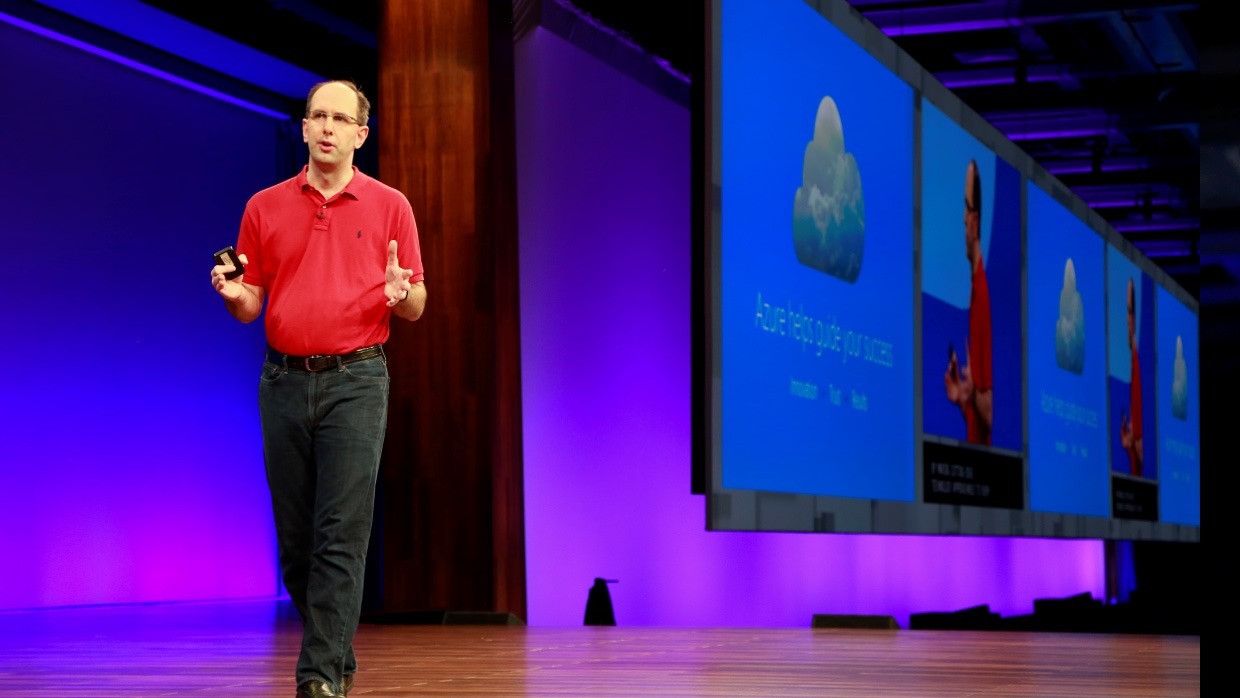
A powerful new feature called Snapshot Debugger will integrate with Visual Studio to make debugging production easier than it ever has been. You can create snap-points on certain lines of code which will instruct Azure to collect information as the application is used. It’s very impressive, and doesn’t affect people using the production application in any way.
I’m keen to try this out but it seems like it is going to be a powerful new way to fix issues in production without the security risks involved in pulling production data to a developer’s local machine for debugging. Awareness of production data is a must for companies who use customer data, and tools like this will help with adherence to the Data Protection Act and security standards like the popular ISO 27001.
Microsoft has a new mantra
A clear message from Build 2017 was that developers shouldn’t be placing all of their business logic and intelligence inside Microsoft’s cloud infrastructure, instead they should be considering how devices on the edge of this cloud could be leveraged to improve the solution.
Intelligent Cloud and Intelligent Edge
Not only does this make more sense, but it’s also something that Microsoft is uniquely positioned to provide. As a long term supplier of back office / on premise software, they’ve already got a foot in the door of many companies data centres. Improvements to Azure Stack and Azure’s IoT offerings allow logic to be moved between Azure’s cloud, to on premise data centres, and even to embedded edge devices.
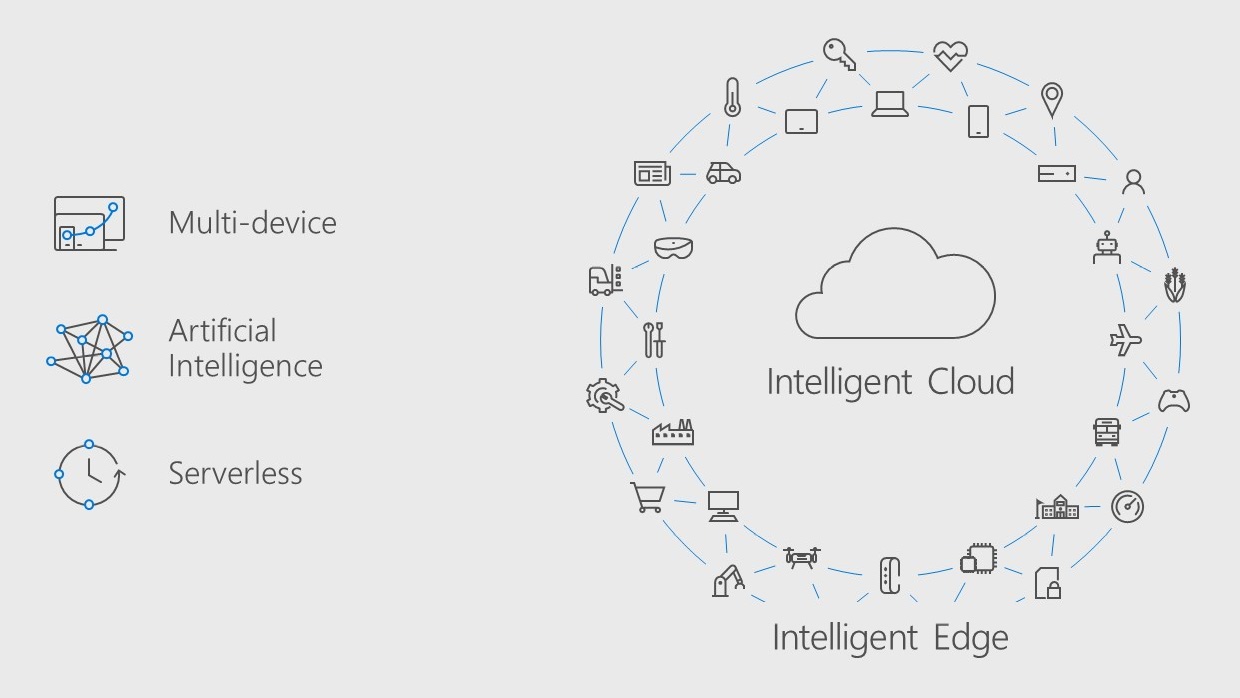
Azure IoT Edge. is an example of how logic can move between the cloud and edge devices through a single management infrastructure:
- Run AI at the edge to reduce latency and allow for offline-scenarios
- Perform analytics and proactive decisions at the edge
- Move logic from cloud to edge at any time
- Management of edge devices from a central location
- Simplify development
- Reduce bandwidth costs
While these tools are very interesting to me, I have a feeling we’re still a little way off. The innovations here are huge and not to be taken lightly and I expect more to come over the next few years.
Cortana and Bot Framework improvements
One of the more obvious changes is that Cortana has come out of the phone itself and she’s now coming to other devices like the Harman Kardon’s Invoke intelligent speaker. (Yes, this counts as an intelligent edge device!)

General improvements have been made around the Bot Framework too. It’s now easier than ever to use natural language for common actions like taking payments from users.
Cortana Skills have been created to better link Cortana with services built on the Bot Framework and Adaptive Cards make it easy to write interactive cards which work across all platforms.
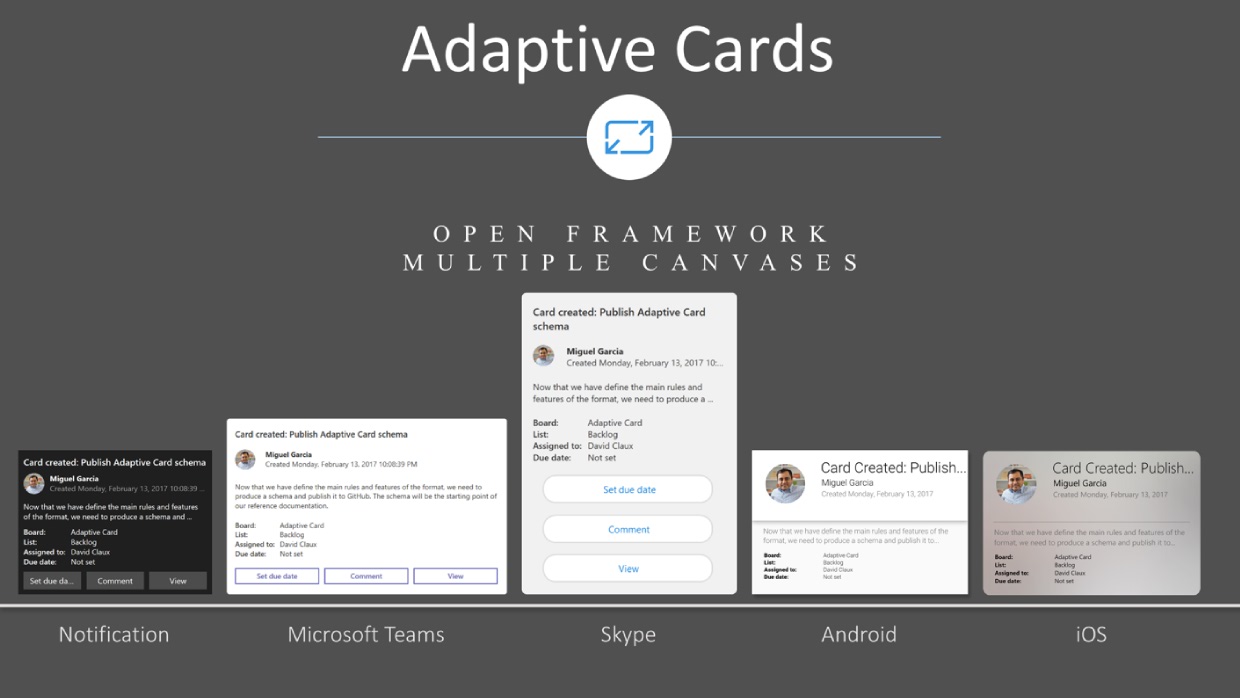
These integration improvements aside, I’m not convinced Cortana herself is moving fast enough and I’ll have to write up some more of my thoughts in a follow up to last year’s thoughts.
Windows 10 Fall Creators Update
Aside from the stupid name, it looks like there has been a steady progression for the Windows 10 platform.
The update brings a number of much-anticipated features including a cross-device clipboard, pick up where you left off, OneDrive on demand sync, and much more.
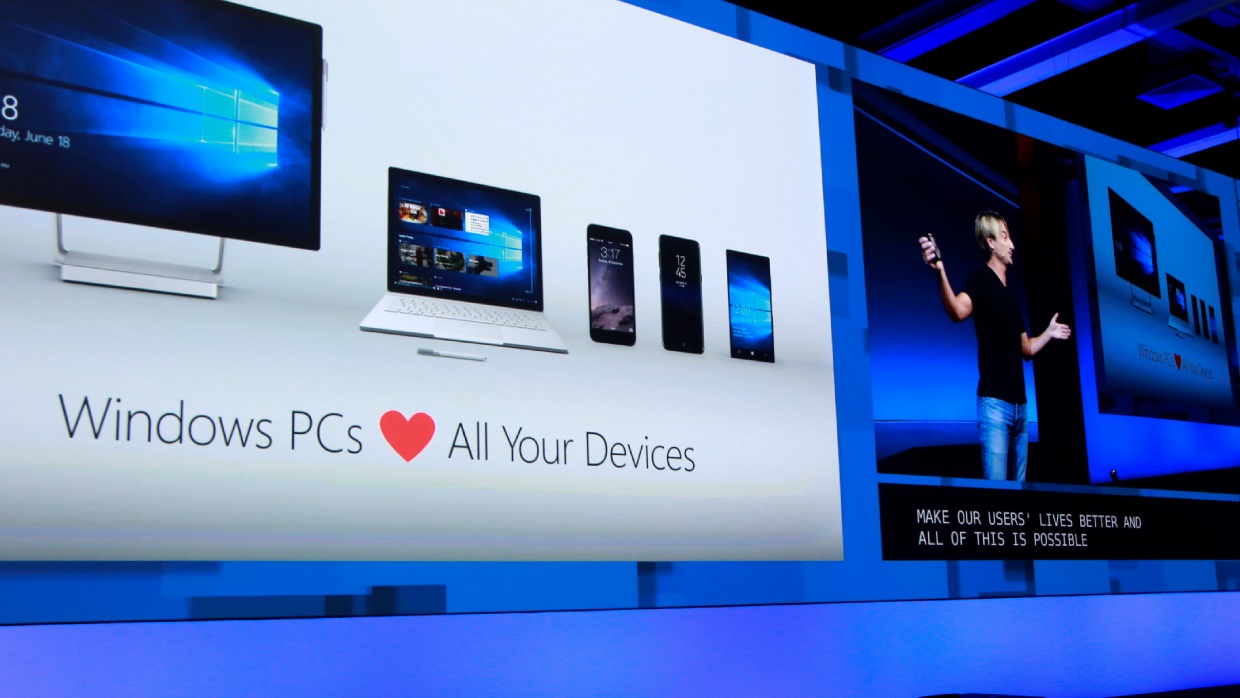
One of the best new features was the timeline view, which shows previously used applications across multiple machines. I’m not sure how well this will work for me, so I’m looking forward to getting my hands on it so that I can try it out.
Interestingly, the addition of a few apps to the Windows Store have caused quite a commotion:
- iTunes – a must-have for iPhone users will be coming to the Windows Store. I don’t use it, but I understand the gravity of what this means to users and the pressure it will apply to Google to bring their apps to the store too.
-
Linux – we’ve had Ubuntu for a year, but now the Windows Subsystem for Linux has been updated to include Fedora and SUSE. Who’d have thought it would be Microsoft to really bring Linux to the desktop?

One of the more impressive apps was Windows Story Remix (the video is worth watching!), which takes advantage of many of the platform and service offerings to include an impressive experience for users who want to create video content with their photos and videos. While this isn’t something I do very often I certainly appreciate how well Windows Story Remix has been executed.
The fall update also brings the long-awaited replacement for the Metro design language…
Fluent Design System 😍
Microsoft’s design system has had a rocky past due the company being forced to drop its “Metro” identity early on in life, and it has hobbled along with the less memorable “Microsoft Design Language” since before Windows 10’s introduction.
Finally, they’ve sorted themselves out and come up with a new name for their design language.
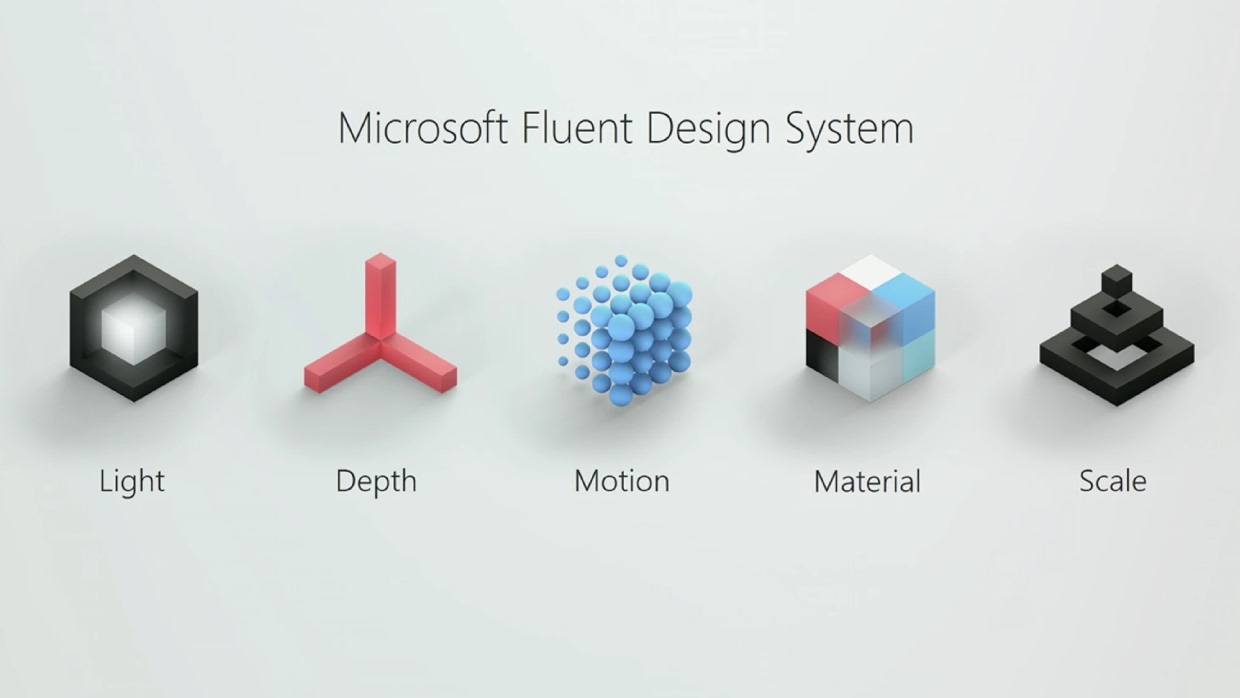
While it is an evolution of the existing Metro principals (see my previous rundown), the new design’s new direction takes into account five key areas:
- Light
- Depth
- Motion
- Material
- Scale
Fluent Design is something that really interests me, so I’m going to write more about this in an upcoming post.
Developer Tools, New APIs and much more…
It’s no surprise that there have been a load of improvements around the developer tools and other services too:
- Visual Studio 2017 for Mac
- 3rd party integrations for Microsoft Teams
- .NET Standard 2.0 and XAML Standard 1.0
- Azure Functions Improvements
- Much more…
Exciting times!